Printing a form, signing it, scanning it and emailing it back is slow, and every step is a chance for a missed page, a bad scan or a lost email. Clients can fill in and sign nearly everything on a phone in a few minutes, and you receive a clean, finished file.
This guide explains the two tools that make that possible, e-signatures and fillable forms, when to use each, how to set them up, and what to watch for. It sits alongside how to request documents from a client, since forms and signatures are usually part of the same request.
The short answer
Use an e-signature when a client only needs to read and sign a document that is already complete. Use a fillable form when you need the client to supply information, such as typing answers, ticking boxes or choosing from a list. Many tasks need both: a form to fill in, then a signature. Put them in the same request as your document checklist so the client finishes everything in one place.
E-signature or fillable form: which do you need?
| You need to... | Use |
|---|---|
| Get a finished agreement, engagement letter or consent signed | E-signature |
| Collect information the client types in (name, address, answers) | Fillable form |
| Have a client confirm choices with check boxes or a dropdown | Fillable form |
| Collect information and a signature on the same document | Both, on the same document |
| Get a form back with a date and initials on each page | E-signature with initials and date fields |
A simple rule: if you could read the finished document aloud to the client and all that is left is for them to agree to it, it needs a signature. If you still need information from them, it needs a form.
How to collect an e-signature
- Prepare the document. Start with a final version, as a PDF. Read it through, because changes after sending usually mean starting again.
- Mark the fields. Place signature fields where each person signs, and date and initial fields where needed. Give each signer their own fields.
- Add the signers. Use each signer's correct name and email address, and set the order if one must sign before another.
- Send with a short message. Explain what the document is, why it needs signing, and by when.
- Let the tool handle the steps. The signer opens a link, reviews the document and signs on screen with a finger or mouse. Most tools record when and how each person signed.
- Keep the signed copy. Save the final file, along with any certificate or audit record the tool produces, with the client's other documents.
How to collect a fillable form
- Start from the document you already use. Upload a PDF of the form or intake sheet.
- Add fields where the answers go. Text boxes for names and addresses, check boxes for yes or no, dropdowns for fixed choices, date fields for dates.
- Mark required fields. This prevents a form coming back with gaps.
- Preview it as the client would see it. Check the order of fields, the wording and how it looks on a phone.
- Send it with the request. The client fills it in online and can often save and return later.
- Review the answers. You receive the completed form with the answers in place.
Saving a form you use repeatedly as a template saves you from rebuilding it each time.
Are electronic signatures legally valid?
In the United States, federal law (the ESIGN Act) and most state laws (the Uniform Electronic Transactions Act) generally give electronic signatures the same legal effect as handwritten ones for most documents, provided the signer intended to sign and consented to doing it electronically. Many other countries have similar rules.
There are exceptions. Certain documents, often including wills, some court and family-law papers, and particular notices, may still need a traditional signature or extra steps. Some contracts and professions have their own requirements. This is general information, not legal advice, so check what applies to your documents and where you work, and ask your own adviser if you are unsure.
What to check before you send
- Is it the final version? Edits after sending cause confusion. If a completed fillable PDF should stay exactly as it is, the free PDF flattener makes its fields non-editable.
- Are the right people signing? Check names, emails and the order.
- Is every field in the right place? A date field over a paragraph of text wastes everyone's time.
- Are required fields marked? Optional fields get skipped.
- Do instructions match the form? A line like "Complete Section B only if you own a business" saves questions.
- Does it work on a phone? Most clients will open it there.
- Have you decided where signed copies go? Know where the finished file is stored before the first one comes back.
Common pitfalls
- Asking clients to print "just in case". It defeats the purpose and introduces scans.
- Sending a form by email as an attachment. Clients then print it, write on it and photograph it. Send it as a form they complete online.
- Mixing up who signs. If two people must sign, give each a separate set of fields so neither signs in the other's place.
- Overcomplicating the form. A long form with dozens of fields reduces completion. Ask only what you need.
- Forgetting reminders. Unsigned documents need chasing like any other missing item.
- Not telling the client when it is done. Confirm receipt of the signed form.
A smoother way for clients
Clients are more likely to finish when everything is in one place. A link that shows the checklist, the form to fill in, the document to sign and the uploads still needed lets them work through it in one sitting or return later without losing progress. A short note that explains what each step is for reduces the questions you receive.
Where docEvault fits
In docEvault, fillable forms and e-signatures sit on the same checklist as your document requests. You turn a PDF into a form by placing fields such as text, check box, date and dropdown, and the client fills it in from a private link with no account. For documents that need signing, docEvault supports e-signatures with signature, initials and date fields, and it keeps each signed document with the request. Fillable forms are available on every plan. Signature, initials and date-signed fields, on a form or a plain document, are e-signatures, which are included with the Professional and Enterprise plans and every free trial. Reminders chase anything that is unfinished, and you can save a form or a whole checklist as a template.
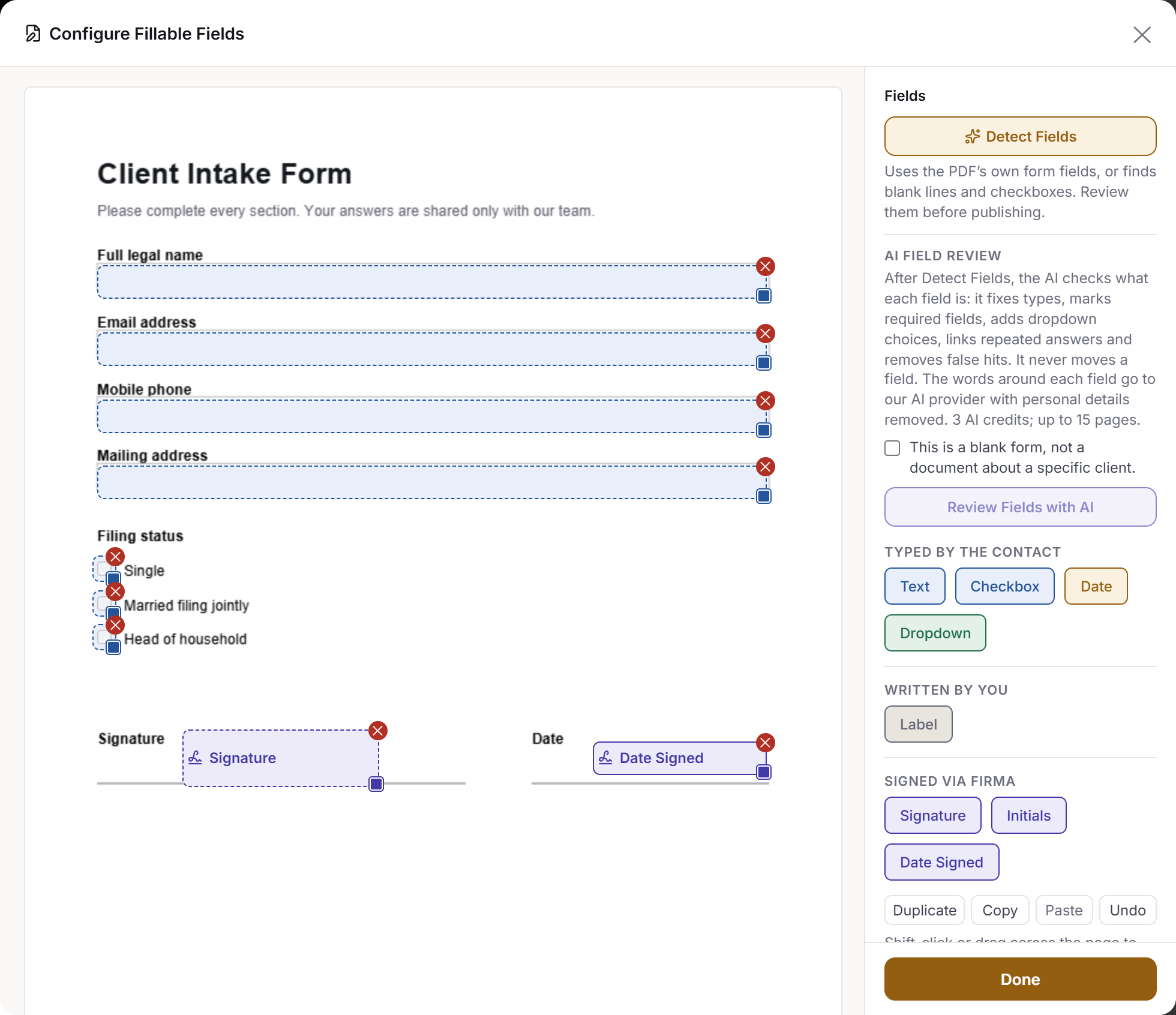
To see how it works, try docEvault, or read about fillable forms and e-signatures.
Frequently asked questions
What is the difference between an e-signature and a fillable form?
An e-signature records a person's agreement to a finished document. A fillable form collects information the person types or selects. Many documents need both.
Are e-signatures legally binding?
In the United States and many other countries, generally yes for most documents, with exceptions such as wills and some court and family-law papers. Check the rules for your own documents and location, and ask a professional if you are unsure.
Can a client sign on a phone?
Yes. Most e-signature tools let people sign with a finger on a phone screen, which is how many clients prefer to do it.
Can I send a form and a signature request together?
Yes, on the Professional and Enterprise plans. A form can include signature, initials and date fields, so the client fills it in and signs in one pass. On Easy Start a form can have text, check box, date and dropdown fields, but no signature step.
Do my clients need an account to sign or fill in a form?
They should not. A private link that opens straight to the form or document is simpler for clients and does not weaken security when the link is unique to them.
Where should signed documents be stored?
Keep the signed file and any audit record with the rest of the client's documents, in a place with controlled access, and follow your retention rules for how long to keep them.